


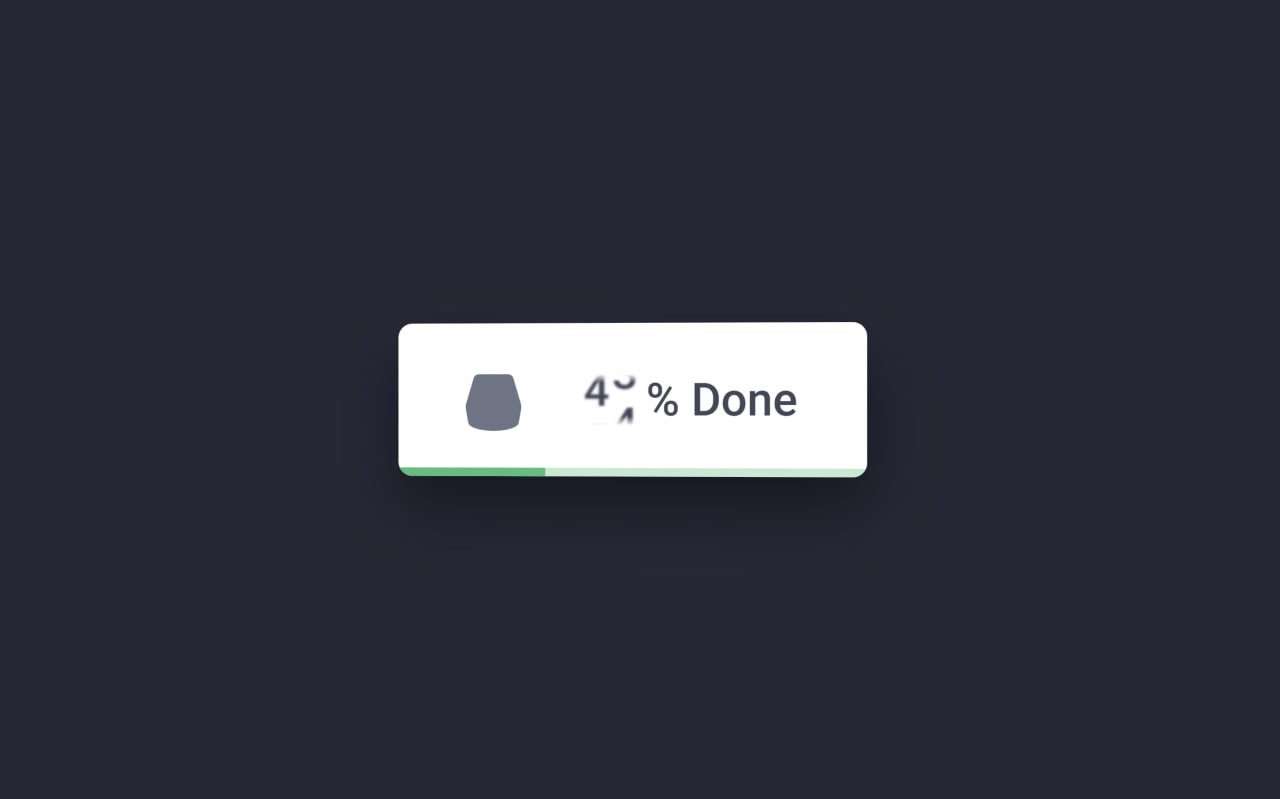
Let’s create an Animated Download Button using HTML, CSS, and JavaScript. This interactive UI simulates a real download experience with a progress counter, animated icon, and smooth success state, making the button feel dynamic and engaging.
We’ll use:
- HTML to structure the button, labels, SVG icons, and progress bar.
- CSS to style the button, add 3D tilt effects, animations, and transitions.
- JavaScript (with jQuery) to handle clicks, switch states, animate the counter, and reset the button.
Whether you’re a beginner or an experienced developer, this project is a great way to practice UI animations, micro-interactions, and state-based design. Let’s make buttons feel alive and interactive. ✨
HTML :
This HTML creates an animated download button UI. It uses SVG icons for the arrow and shape, text states for “Download”, a percentage counter, and “Done”, plus a progress bar. The structure is styled by an external CSS file and animated/controlled by a JavaScript file (with jQuery) to simulate download progress and allow restarting the animation.
<!DOCTYPE html>
<html lang="en">

<head>
    <meta charset="UTF-8">
    <title>Particle to 3D Text Animation | @coding.stella</title>
    <link rel="stylesheet" href="./style.css">
</head>

<body>
    <link rel="preconnect" href="https://fonts.googleapis.com">
    <link rel="preconnect" href="https://fonts.gstatic.com" crossorigin>
    <link href="https://fonts.googleapis.com/css2?family=Inter:wght@400;500;600;700&display=swap" rel="stylesheet">
    <script src="https://cdnjs.cloudflare.com/ajax/libs/three.js/r128/three.min.js"></script>
    <script src="https://cdnjs.cloudflare.com/ajax/libs/gsap/3.7.1/gsap.min.js"></script>
    <div id="container"></div>

    <div class="input-container">
        <div class="input-wrapper">
            <input type="text" id="morphText" placeholder="Type something..." maxlength="20">
            <button id="typeBtn">
                <span class="button-content">
                    <svg width="24" height="24" viewBox="0 0 24 24" fill="none" xmlns="http://www.w3.org/2000/svg">
                        <path d="M5 12H19M19 12L12 5M19 12L12 19" stroke="currentColor" stroke-width="2"
                            stroke-linecap="round" stroke-linejoin="round" />
                    </svg>
                    <span>Create</span>
                </span>
            </button>
        </div>
    </div>
    <script src="./script.js"></script>

</body>
</html>
CSS :
This CSS styles and animates the download button: it defines colors, layout, shadows, and 3D effects, then uses transitions and keyframes to move the arrow, update the counter, fill the progress bar, and tilt the button during download. CSS variables control timing and colors, while state classes like .active and .done trigger the full animation and success state.
* {
    margin: 0;
    padding: 0;
    box-sizing: border-box;
}

body {
    background: #000;
    overflow: hidden;
    font-family: 'Inter', sans-serif;
    color: white;
}

#container {
    position: fixed;
    top: 0;
    left: 0;
    width: 100%;
    height: 100%;
}

.header {
    position: fixed;
    top: 2rem;
    left: 2rem;
    text-align: left;
    z-index: 1;
    mix-blend-mode: difference;
}

.header h1 {
    font-size: 2.5rem;
    font-weight: 900;
    line-height: 1;
    text-transform: uppercase;
    background: linear-gradient(45deg, #ff6e7f, #bfe9ff);
    -webkit-background-clip: text;
    background-clip: text;
    color: transparent;
    opacity: 0.9;
    letter-spacing: -1px;
    filter: drop-shadow(0 0 15px rgba(255, 255, 255, 0.3));
}

.color-controls {
    position: fixed;
    top: 2rem;
    right: 2rem;
    z-index: 10;
    background: rgba(0, 0, 0, 0.3);
    padding: 1rem;
    border-radius: 15px;
    backdrop-filter: blur(10px);
    box-shadow: 0 0 20px rgba(0, 0, 0, 0.3);
}

.color-scheme {
    display: flex;
    flex-direction: column;
    gap: 0.5rem;
}

.color-scheme button {
    display: flex;
    align-items: center;
    gap: 0.5rem;
    background: rgba(255, 255, 255, 0.1);
    border: 1px solid rgba(255, 255, 255, 0.2);
    padding: 0.5rem 1rem;
    color: white;
    border-radius: 8px;
    cursor: pointer;
    transition: all 0.3s ease;
    font-size: 0.9rem;
    min-width: 120px;
}

.color-scheme button:hover {
    background: rgba(255, 255, 255, 0.2);
}

.color-scheme button.active {
    background: rgba(255, 255, 255, 0.3);
    border-color: rgba(255, 255, 255, 0.5);
}

.color-preview {
    width: 20px;
    height: 20px;
    border-radius: 50%;
    border: 2px solid rgba(255, 255, 255, 0.3);
}

.color-preview.cosmic {
    background: linear-gradient(45deg, #ff6e7f, #bfe9ff);
}

.color-preview.neon {
    background: linear-gradient(45deg, #00ff87, #60efff);
}

.color-preview.sunset {
    background: linear-gradient(45deg, #ff8c37, #ff427a);
}

.color-preview.ocean {
    background: linear-gradient(45deg, #0082c8, #00b4db);
}

.controls {
    position: fixed;
    bottom: 2rem;
    left: 50%;
    transform: translateX(-50%);
    display: flex;
    gap: 1rem;
    z-index: 10;
    background: rgba(0, 0, 0, 0.3);
    padding: 1rem;
    border-radius: 50px;
    backdrop-filter: blur(10px);
    box-shadow: 0 0 20px rgba(0, 0, 0, 0.3);
}

.controls button {
    background: rgba(255, 255, 255, 0.1);
    border: 1px solid rgba(255, 255, 255, 0.2);
    padding: 0.8rem 1.5rem;
    color: white;
    border-radius: 25px;
    cursor: pointer;
    transition: all 0.3s ease;
    text-transform: uppercase;
    letter-spacing: 1px;
    font-size: 0.9rem;
    font-weight: 500;
    min-width: 120px;
}

.controls button:hover {
    background: rgba(255, 255, 255, 0.2);
    transform: translateY(-2px);
    box-shadow: 0 5px 15px rgba(0, 0, 0, 0.3);
}

.controls button.active {
    background: linear-gradient(45deg, #ff6e7f, #bfe9ff);
    border: none;
    color: #000;
}

@keyframes float {
    0% {
        transform: translate(-50%, -50%);
    }

    50% {
        transform: translate(-50%, -52%);
    }

    100% {
        transform: translate(-50%, -50%);
    }
}

.content {
    animation: float 4s ease-in-out infinite;
}

.input-container {
    position: fixed;
    bottom: 2rem;
    left: 50%;
    transform: translateX(-50%);
    z-index: 10;
    width: 90%;
    max-width: 600px;
    padding: 0 1rem;
}

.input-wrapper {
    background: rgba(255, 255, 255, 0.1);
    backdrop-filter: blur(10px);
    border: 1px solid rgba(255, 255, 255, 0.2);
    border-radius: 16px;
    padding: 0.5rem;
    display: flex;
    gap: 0.5rem;
    box-shadow: 0 4px 24px -1px rgba(0, 0, 0, 0.2);
    transition: all 0.3s ease;
}

.input-wrapper:hover {
    background: rgba(255, 255, 255, 0.15);
    border-color: rgba(255, 255, 255, 0.3);
    box-shadow: 0 4px 30px -1px rgba(0, 0, 0, 0.3);
}

input {
    flex: 1;
    background: transparent;
    border: none;
    padding: 1rem 1.25rem;
    color: white;
    font-size: 1rem;
    font-weight: 500;
}

input:focus {
    outline: none;
}

input::placeholder {
    color: rgba(255, 255, 255, 0.5);
}

button {
    background: linear-gradient(135deg, #6366f1 0%, #4f46e5 100%);
    border: none;
    padding: 0.75rem 1.5rem;
    color: white;
    border-radius: 12px;
    font-weight: 600;
    cursor: pointer;
    transition: all 0.3s ease;
    display: flex;
    align-items: center;
    gap: 0.5rem;
}

button:hover {
    transform: translateY(-1px);
    box-shadow: 0 4px 20px -2px rgba(79, 70, 229, 0.5);
}

button:active {
    transform: translateY(1px);
}

.button-content {
    display: flex;
    align-items: center;
    gap: 0.5rem;
}

.button-content svg {
    width: 20px;
    height: 20px;
    transition: transform 0.3s ease;
}

button:hover .button-content svg {
    transform: translateX(3px);
}

@media (max-width: 640px) {
    .input-container {
        bottom: 1.5rem;
        padding: 0 0.75rem;
    }

    button {
        padding: 0.75rem 1.25rem;
    }

    .button-content span {
        display: none;
    }
}
JavaScript:
This jQuery code handles the download button animation: when .dl-button is clicked, it switches the label from “Download” to the progress state, animates the counter width, then marks the button as “done” after a set duration. The restart button resets everything back to the default state. The setLabel function smoothly swaps between text states by animating the label width and toggling classes.
let scene, camera, renderer, particles;
const count = 12000;
let currentState = 'sphere';

function init() {
    scene = new THREE.Scene();
    camera = new THREE.PerspectiveCamera(75, window.innerWidth / window.innerHeight, 0.1, 1000);
    renderer = new THREE.WebGLRenderer({ antialias: true });
    renderer.setSize(window.innerWidth, window.innerHeight);
    renderer.setClearColor(0x000000);
    document.getElementById('container').appendChild(renderer.domElement);

    camera.position.z = 25;

    createParticles();
    setupEventListeners();
    animate();
}

function createParticles() {
    const geometry = new THREE.BufferGeometry();
    const positions = new Float32Array(count * 3);
    const colors = new Float32Array(count * 3);

    function sphericalDistribution(i) {
        const phi = Math.acos(-1 + (2 * i) / count);
        const theta = Math.sqrt(count * Math.PI) * phi;

        return {
            x: 8 * Math.cos(theta) * Math.sin(phi),
            y: 8 * Math.sin(theta) * Math.sin(phi),
            z: 8 * Math.cos(phi)
        };
    }

    for (let i = 0; i < count; i++) {
        const point = sphericalDistribution(i);

        positions[i * 3] = point.x + (Math.random() - 0.5) * 0.5;
        positions[i * 3 + 1] = point.y + (Math.random() - 0.5) * 0.5;
        positions[i * 3 + 2] = point.z + (Math.random() - 0.5) * 0.5;

        const color = new THREE.Color();
        const depth = Math.sqrt(point.x * point.x + point.y * point.y + point.z * point.z) / 8;
        color.setHSL(0.5 + depth * 0.2, 0.7, 0.4 + depth * 0.3);

        colors[i * 3] = color.r;
        colors[i * 3 + 1] = color.g;
        colors[i * 3 + 2] = color.b;
    }

    geometry.setAttribute('position', new THREE.BufferAttribute(positions, 3));
    geometry.setAttribute('color', new THREE.BufferAttribute(colors, 3));

    const material = new THREE.PointsMaterial({
        size: 0.08,
        vertexColors: true,
        blending: THREE.AdditiveBlending,
        transparent: true,
        opacity: 0.8,
        sizeAttenuation: true
    });

    if (particles) scene.remove(particles);
    particles = new THREE.Points(geometry, material);
    particles.rotation.x = 0;
    particles.rotation.y = 0;
    particles.rotation.z = 0;
    scene.add(particles);
}

function setupEventListeners() {
    const typeBtn = document.getElementById('typeBtn');
    const input = document.getElementById('morphText');

    typeBtn.addEventListener('click', () => {
        const text = input.value.trim();
        if (text) {
            morphToText(text);
        }
    });

    input.addEventListener('keypress', (e) => {
        if (e.key === 'Enter') {
            const text = input.value.trim();
            if (text) {
                morphToText(text);
            }
        }
    });
}

function createTextPoints(text) {
    const canvas = document.createElement('canvas');
    const ctx = canvas.getContext('2d');
    const fontSize = 100;
    const padding = 20;

    ctx.font = `bold ${fontSize}px Arial`;
    const textMetrics = ctx.measureText(text);
    const textWidth = textMetrics.width;
    const textHeight = fontSize;

    canvas.width = textWidth + padding * 2;
    canvas.height = textHeight + padding * 2;

    ctx.fillStyle = 'white';
    ctx.font = `bold ${fontSize}px Arial`;
    ctx.textBaseline = 'middle';
    ctx.textAlign = 'center';
    ctx.fillText(text, canvas.width / 2, canvas.height / 2);

    const imageData = ctx.getImageData(0, 0, canvas.width, canvas.height);
    const pixels = imageData.data;
    const points = [];
    const threshold = 128;

    for (let i = 0; i < pixels.length; i += 4) {
        if (pixels[i] > threshold) {
            const x = (i / 4) % canvas.width;
            const y = Math.floor((i / 4) / canvas.width);

            if (Math.random() < 0.3) {
                points.push({
                    x: (x - canvas.width / 2) / (fontSize / 10),
                    y: -(y - canvas.height / 2) / (fontSize / 10)
                });
            }
        }
    }

    return points;
}

function morphToText(text) {
    currentState = 'text';
    const textPoints = createTextPoints(text);
    const positions = particles.geometry.attributes.position.array;
    const targetPositions = new Float32Array(count * 3);

    gsap.to(particles.rotation, {
        x: 0,
        y: 0,
        z: 0,
        duration: 0.5
    });

    for (let i = 0; i < count; i++) {
        if (i < textPoints.length) {
            targetPositions[i * 3] = textPoints[i].x;
            targetPositions[i * 3 + 1] = textPoints[i].y;
            targetPositions[i * 3 + 2] = 0;
        } else {
            const angle = Math.random() * Math.PI * 2;
            const radius = Math.random() * 20 + 10;
            targetPositions[i * 3] = Math.cos(angle) * radius;
            targetPositions[i * 3 + 1] = Math.sin(angle) * radius;
            targetPositions[i * 3 + 2] = (Math.random() - 0.5) * 10;
        }
    }

    for (let i = 0; i < positions.length; i += 3) {
        gsap.to(particles.geometry.attributes.position.array, {
            [i]: targetPositions[i],
            [i + 1]: targetPositions[i + 1],
            [i + 2]: targetPositions[i + 2],
            duration: 2,
            ease: "power2.inOut",
            onUpdate: () => {
                particles.geometry.attributes.position.needsUpdate = true;
            }
        });
    }

    setTimeout(() => {
        morphToCircle();
    }, 4000);
}

function morphToCircle() {
    currentState = 'sphere';
    const positions = particles.geometry.attributes.position.array;
    const targetPositions = new Float32Array(count * 3);
    const colors = particles.geometry.attributes.color.array;

    function sphericalDistribution(i) {
        const phi = Math.acos(-1 + (2 * i) / count);
        const theta = Math.sqrt(count * Math.PI) * phi;

        return {
            x: 8 * Math.cos(theta) * Math.sin(phi),
            y: 8 * Math.sin(theta) * Math.sin(phi),
            z: 8 * Math.cos(phi)
        };
    }

    for (let i = 0; i < count; i++) {
        const point = sphericalDistribution(i);

        targetPositions[i * 3] = point.x + (Math.random() - 0.5) * 0.5;
        targetPositions[i * 3 + 1] = point.y + (Math.random() - 0.5) * 0.5;
        targetPositions[i * 3 + 2] = point.z + (Math.random() - 0.5) * 0.5;

        const depth = Math.sqrt(point.x * point.x + point.y * point.y + point.z * point.z) / 8;
        const color = new THREE.Color();
        color.setHSL(0.5 + depth * 0.2, 0.7, 0.4 + depth * 0.3);

        colors[i * 3] = color.r;
        colors[i * 3 + 1] = color.g;
        colors[i * 3 + 2] = color.b;
    }

    for (let i = 0; i < positions.length; i += 3) {
        gsap.to(particles.geometry.attributes.position.array, {
            [i]: targetPositions[i],
            [i + 1]: targetPositions[i + 1],
            [i + 2]: targetPositions[i + 2],
            duration: 2,
            ease: "power2.inOut",
            onUpdate: () => {
                particles.geometry.attributes.position.needsUpdate = true;
            }
        });
    }

    for (let i = 0; i < colors.length; i += 3) {
        gsap.to(particles.geometry.attributes.color.array, {
            [i]: colors[i],
            [i + 1]: colors[i + 1],
            [i + 2]: colors[i + 2],
            duration: 2,
            ease: "power2.inOut",
            onUpdate: () => {
                particles.geometry.attributes.color.needsUpdate = true;
            }
        });
    }
}

function animate() {
    requestAnimationFrame(animate);

    if (currentState === 'sphere') {
        particles.rotation.y += 0.002;
    }

    renderer.render(scene, camera);
}

window.addEventListener('resize', () => {
    camera.aspect = window.innerWidth / window.innerHeight;
    camera.updateProjectionMatrix();
    renderer.setSize(window.innerWidth, window.innerHeight);
});

init();
In conclusion, this animated download button shows how a simple UI element can feel rich and interactive using HTML, CSS, and JavaScript. It combines smooth animations, visual feedback, and state changes to simulate a real download experience..
If your project has problems, don’t worry. Just click to download the source code and face your coding challenges with excitement. Have fun coding!
