


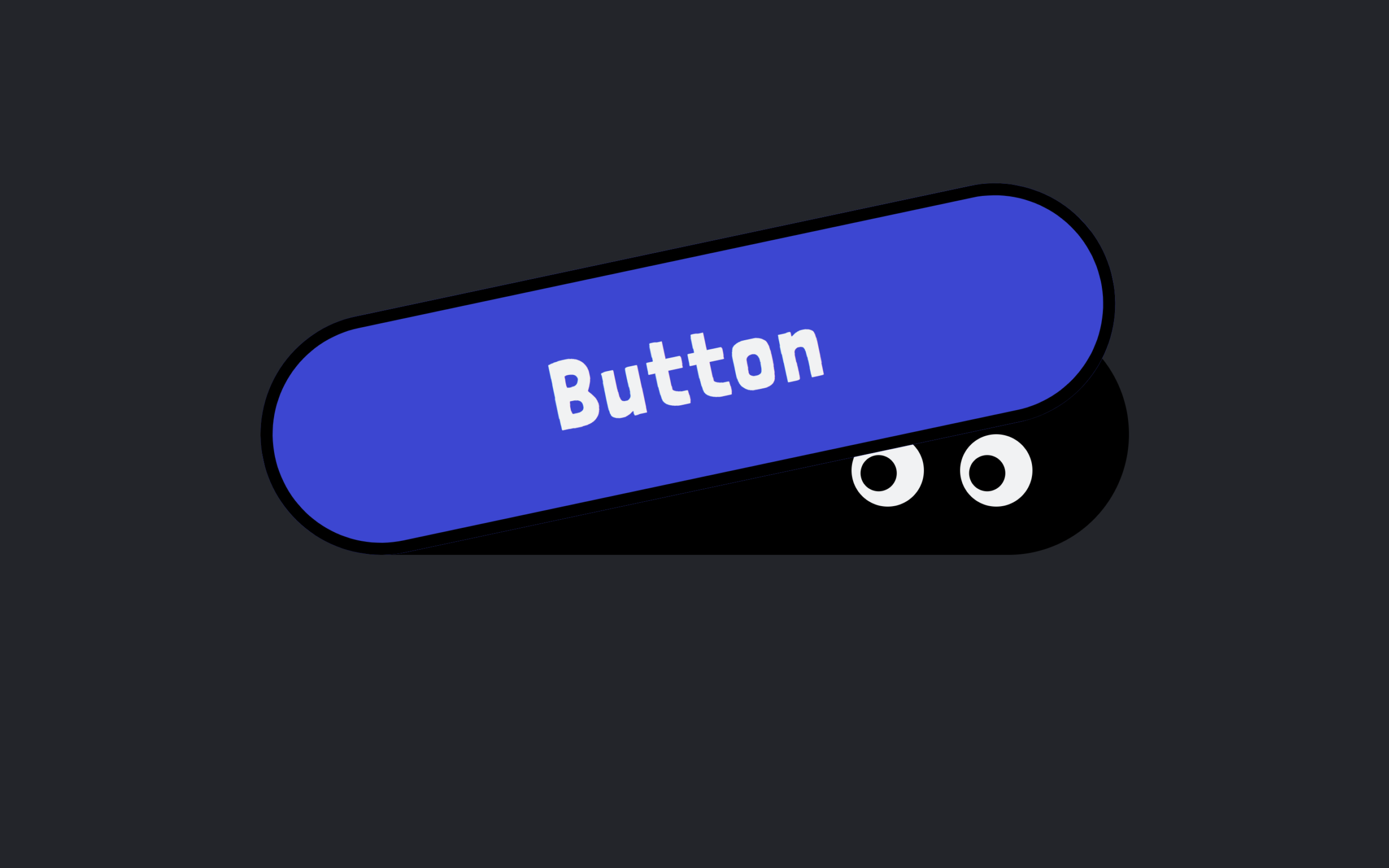
Let’s create a Creepy Eye Button using HTML, CSS, and JavaScript, where a simple button transforms into an interactive UI element that follows your cursor with animated blinking eyes, making it fun and visually engaging.
We’ll use:
- HTML to structure the button, including elements for the button itself, its cover, and the eyes (with pupils) so everything is layered properly for animation.
- CSS to design the creepy look using custom colors, rounded shapes, and smooth transitions, along with keyframe animations to create the blinking effect and hover interactions for a lively feel.
- JavaScript to add interactivity by tracking mouse or touch movement, calculating cursor position relative to the eyes, and dynamically moving the pupils using transforms so the button appears to “watch” the user in real time.
This project is perfect for learning how to combine creative UI design, animations, and interactive logic to build unique components that stand out in modern web design 👁️✨
HTML :
This is a basic HTML setup for a webpage: it defines the document type and language, sets important meta tags like character encoding and responsive viewport, gives the page a title, loads a custom font from Bunny Fonts, and links an external CSS file for styling; inside the body it has a div with id “root” which is likely used by JavaScript to render content, and finally it loads a JavaScript module (script.js) that controls the page’s functionality or animations (like the creepy eye button).
<!DOCTYPE html>
<html lang="en">

<head>
  <meta charset="UTF-8">
  <title>Creepy Eye Button | @coding.stella</title>
  <meta name="viewport" content="width=device-width, initial-scale=1.0, viewport-fit=cover" />
  <link rel='stylesheet' href='https://fonts.bunny.net/css?family=londrina-solid:400'>
  <link rel="stylesheet" href="./style.css">
</head>

<body>
  <div id="root"></div>
  <script type="module" src="./script.js"></script>

</body>
</html>
CSS :
This CSS resets default spacing and sets up global variables (colors, sizes, transitions), then styles the page to center everything with a dark background; it creates a “creepy button” with a colored cover, rounded shape, and smooth hover/press animations, while inside it small circular “eyes” with pupils are positioned and animated using keyframes to blink continuously, giving the button a creepy animated eye effect when you interact with it.
* {
  border: 0;
  box-sizing: border-box;
  margin: 0;
  padding: 0;
}

:root {
  --hue: 223deg;
  --gray1: hsl(var(--hue) 10% 95%);
  --gray9: hsl(var(--hue) 10% 15%);
  --black: hsl(0 0% 0%);
  --primary3: hsl(var(--hue) 90% 75%);
  --primary5: hsl(var(--hue) 90% 55%);
  --primary6: hsl(var(--hue) 90% 45%);
  --trans-dur: 0.3s;
  color-scheme: light dark;
  font-size: clamp(1.25rem, 1rem + 1.25vw, 2.5rem);
}

body,
button {
  font: 1em/1.5 "Londrina Solid", sans-serif;
  transition: background-color var(--trans-dur), color var(--trans-dur);
}

body {
  background-color: light-dark(var(--gray1), var(--gray9));
  color: light-dark(var(--gray9), var(--gray1));
  display: grid;
  place-items: center;
  height: 100vh;
}

.creepy-btn {
  background-color: var(--black);
  border-radius: 1.25em;
  color: var(--gray1);
  cursor: pointer;
  letter-spacing: 1px;
  min-width: 9em;
  outline: 0.1875em solid transparent;
  transition: outline 0.1s linear;
  -webkit-tap-highlight-color: transparent;
}

.creepy-btn,
.creepy-btn__cover,
.creepy-btn__eye {
  position: relative;
}

.creepy-btn,
.creepy-btn__pupil {
  background-color: var(--black);
}

.creepy-btn__cover,
.creepy-btn__pupil {
  border-radius: inherit;
  display: block;
}

.creepy-btn__cover {
  background-color: var(--primary5);
  box-shadow: 0 0 0 0.125em var(--black) inset;
  padding: 0.5em 1em;
  inset: 0;
  transform-origin: 1.25em 50%;
  transition: background-color var(--trans-dur), transform var(--trans-dur) cubic-bezier(0.65, 0, 0.35, 1);
}

.creepy-btn__eye {
  animation: eye-blink 3s infinite;
  background-color: var(--gray1);
  border-radius: 50%;
  overflow: hidden;
  width: 0.75em;
  height: 0.75em;
}

.creepy-btn__eyes,
.creepy-btn__pupil {
  position: absolute;
}

.creepy-btn__eyes {
  display: flex;
  align-items: center;
  gap: 0.375em;
  right: 1em;
  bottom: 0.5em;
  height: 0.75em;
}

.creepy-btn__pupil {
  aspect-ratio: 1;
  top: 50%;
  left: 50%;
  width: 0.375em;
  transform: translate(-50%, -50%);
}

.creepy-btn:focus-visible {
  outline: 0.1875em solid var(--primary3);
}

.creepy-btn:hover .creepy-btn__cover {
  background-color: var(--primary6);
}

.creepy-btn:focus-visible .creepy-btn__cover,
.creepy-btn:hover .creepy-btn__cover {
  transform: rotate(-12deg);
  transition-timing-function: cubic-bezier(0.65, 0, 0.35, 1.65);
}

.creepy-btn:active .creepy-btn__cover {
  transform: rotate(0);
  transition-timing-function: cubic-bezier(0.65, 0, 0.35, 1);
}

@keyframes eye-blink {

  0%,
  92%,
  100% {
    animation-timing-function: cubic-bezier(0.32, 0, 0.67, 0);
    height: 0.75em;
  }

  96% {
    animation-timing-function: cubic-bezier(0.33, 1, 0.68, 1);
    height: 0;
  }
}
JavaScript:
This React code creates a custom button component where two “eyes” follow your cursor: it uses useRef to track the eyes container position and useState to store pupil movement, then on mouse or touch move it calculates the angle and distance between the cursor and the eyes using math functions, converts that into x and y values, and applies a transform style so the pupils move inside the eyes, making it look like the button is watching your cursor while still behaving like a normal clickable button.
import React, { StrictMode, useRef, useState } from "https://esm.sh/react";
import { createRoot } from "https://esm.sh/react-dom/client";
createRoot(document.getElementById("root")).render(React.createElement(StrictMode, null,
    React.createElement(CreepyButton, null, "Button")));
function CreepyButton({ onClick, children }) {
    const eyesRef = useRef(null);
    const [eyeCoords, setEyeCoords] = useState({ x: 0, y: 0 });
    const translateX = `${-50 + eyeCoords.x * 50}%`;
    const translateY = `${-50 + eyeCoords.y * 50}%`;
    const eyeStyle = {
        "transform": `translate(${translateX}, ${translateY})`
    };
    const updateEyes = (e) => {
        var _a;
        const userEvent = "touches" in e ? e.touches[0] : e;
        // get the center of the eyes container and cursor location
        const eyesRect = (_a = eyesRef.current) === null || _a === void 0 ? void 0 : _a.getBoundingClientRect();
        const eyes = {
            x: eyesRect.left + eyesRect.width / 2,
            y: eyesRect.top + eyesRect.height / 2
        };
        const cursor = {
            x: userEvent.clientX,
            y: userEvent.clientY
        };
        // calculate the eye angle
        const dx = cursor.x - eyes.x;
        const dy = cursor.y - eyes.y;
        const angle = Math.atan2(-dy, dx) + Math.PI / 2;
        // then the pupil distance from the eye center
        const visionRangeX = 180;
        const visionRangeY = 75;
        const distance = Math.hypot(dx, dy);
        const x = Math.sin(angle) * distance / visionRangeX;
        const y = Math.cos(angle) * distance / visionRangeY;
        setEyeCoords({ x, y });
    };
    return (React.createElement("button", { className: "creepy-btn", type: "button", onClick: onClick, onMouseMove: updateEyes, onTouchMove: updateEyes },
        React.createElement("span", { className: "creepy-btn__eyes", ref: eyesRef },
            React.createElement("span", { className: "creepy-btn__eye" },
                React.createElement("span", { className: "creepy-btn__pupil", style: eyeStyle })),
            React.createElement("span", { className: "creepy-btn__eye" },
                React.createElement("span", { className: "creepy-btn__pupil", style: eyeStyle }))),
        React.createElement("span", { className: "creepy-btn__cover" }, children)));
}
In conclusion, this project shows how a simple portfolio can be transformed into a modern, interactive experience by combining HTML for structure, CSS for clean and responsive design, and JavaScript for animations and real-time interactions, helping you create a professional portfolio that not only showcases your work but also impresses users with smooth visuals and functionality 🚀
If your project has problems, don’t worry. Just click to download the source code and face your coding challenges with excitement. Have fun coding!
