


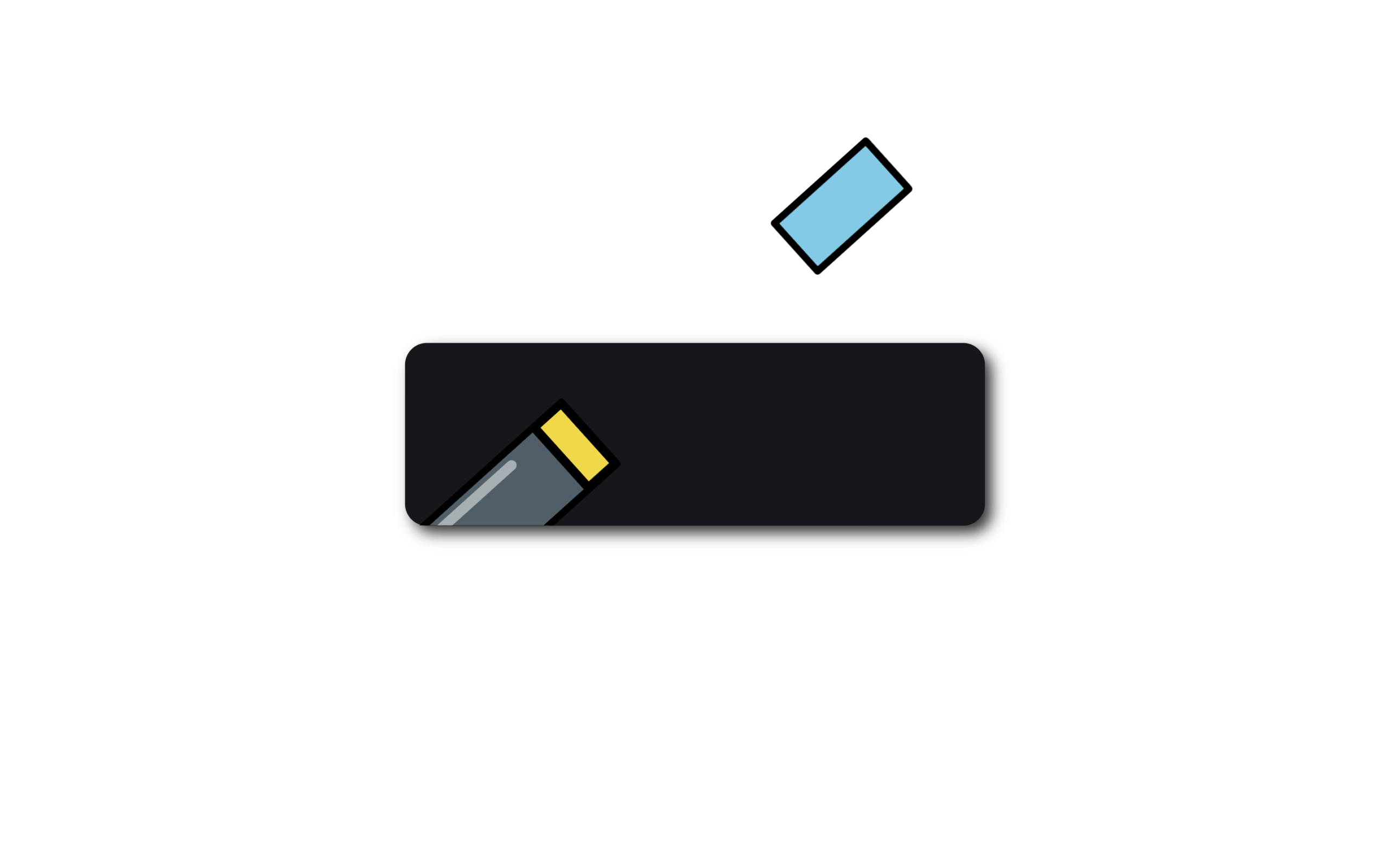
Let’s create an Interactive Launch Order Button using HTML, CSS, and JavaScript – an engaging UI where a button transforms into a mini animation scene, folding a t-shirt, loading it into a cannon, and firing it with smooth motion and text transition.
- HTML:
Create a button with t-shirt parts, cannon, and text (“Order” → “Ordered”) using SVG and layered divs. - CSS:
Style the button with colors, shadows, and positioning. Use transforms and variables for smooth animations. - JavaScript:
Use GSAP for animation timelines and Splitting.js for text effects. Handle click to fold, load, and fire animation.
This project helps you understand timeline animations, SVG-based UI, and advanced interaction design while building a highly creative and satisfying micro-interaction.
HTML :
This code creates an animated “Order” button using HTML, SVG graphics, and JavaScript animations. Inside the <button>, there’s a structured layout with a cannon and a t-shirt made using SVG shapes, which are styled and animated using external CSS and the GSAP library along with Splitting.js for text effects. When the button is clicked, the animation likely triggers a sequence where the cannon “shoots” the t-shirt and the text changes from “Order” to “Ordered,” creating an interactive and visually engaging effect.
<!DOCTYPE html>
<html lang="en">

  <head>
    <meta charset="UTF-8">
    <title>Interactive Launch Order Button | @coding.stella</title>
    <link rel="stylesheet" href="https://public.codepenassets.com/css/normalize-5.0.0.min.css">
<link rel="stylesheet" href="./style.css">

  </head>

  <body>
  <button>
  <div class="button">
    <div class="t-shirt__cannon button__cannon">
      <div class="t-shirt__cannon-content">
        <svg class="cannon__shirt" xmlns="http://www.w3.org/2000/svg" xmlns:xlink="http://www.w3.org/1999/xlink" viewbox="0 0 16.7 87.1">
          <g>
            <path stroke="#000" stroke-width="1.3" stroke-linecap="round" stroke-linejoin="round" d="M55.1 223.9h22.7v12H55.1z" transform="matrix(0 -1.00036 .99247 0 -219.8 98)"></path>
          </g>
        </svg>
        <svg class="cannon" xmlns="http://www.w3.org/2000/svg" xmlns:xlink="http://www.w3.org/1999/xlink" viewbox="0 0 16.7 87.1">
          <g transform="matrix(0 -1.00036 .99247 0 -219.8 98)">
            <path class="cannon__plastic" stroke="#000" stroke-width="1.3" stroke-linecap="round" stroke-linejoin="round" d="M11.6 222.1h85.7v15.5H11.6z"></path>
            <rect class="cannon__shine" width="20.4" height="1.9" x="63.2" y="223.7" ry="1"></rect>
            <g stroke="#000" stroke-linecap="round" stroke-linejoin="round">
              <path class="cannon__band" transform="matrix(-.26547 0 0 -.24756 81.3 272.7)" d="M-59.7 143v60.6h25.3v-60.7z" stroke-width="6.3"></path>
            </g>
          </g>
        </svg>
      </div>
    </div>
    <div class="t-shirt__container">
      <div class="t-shirt__wrapper button__shirt">
        <svg class="t-shirt t-shirt--middle" xmlns="http://www.w3.org/2000/svg" width="245" height="230" viewbox="0 0 64.8 60.9">
          <defs>
            <clipPath id="clipMain">
              <rect width="65" height="61"></rect>
            </clipPath>
          </defs>
          <g class="t-shirt__shirt" stroke="#000">
            <g class="t-shirt__middle" clip-path="url(#clipMain)">
              <path d="M90.5 151.3a9.5 4.6 0 01-9 3 9.5 4.6 0 01-9-3l-2.3.4v58.2h22.7v-58.2z" stroke-width="1.3" stroke-linecap="square" transform="matrix(1.00036 0 0 .99247 -49.2 -148.7)"></path>
            </g>
          </g>
        </svg>
        <svg class="t-shirt t-shirt--left" xmlns="http://www.w3.org/2000/svg" width="245" height="230" viewbox="0 0 64.8 60.9">
          <defs>
            <clipPath id="clipLeft">
              <rect width="22.5" height="61"></rect>
            </clipPath>
          </defs>
          <g class="t-shirt__shirt" stroke="#000">
            <g class="t-shirt__arm t-shirt__arm--left" clip-path="url(#clipLeft)">
              <path d="M251.8 109.2a36 17.5 0 01-34 11.6 36 17.5 0 01-33.9-11.6l-31.5 4.8-50 50 37 36.8 13-13v142.7h130.9V187.7l13.1 13.1 36.9-36.8-50-50z" transform="matrix(.26468 0 0 .2626 -25.2 -27.2)" stroke-width="5" stroke-linecap="square"></path>
            </g>
          </g>
        </svg>
        <svg class="t-shirt t-shirt--right" xmlns="http://www.w3.org/2000/svg" width="245" height="230" viewbox="0 0 64.8 60.9">
          <defs>
            <clipPath id="clipRight">
              <rect x="42.3" width="22.5" height="61"></rect>
            </clipPath>
          </defs>
          <g class="t-shirt__shirt" stroke="#000">
            <g class="t-shirt__arm t-shirt__arm--right" clip-path="url(#clipRight)">
              <path d="M251.8 109.2a36 17.5 0 01-34 11.6 36 17.5 0 01-33.9-11.6l-31.5 4.8-50 50 37 36.8 13-13v142.7h130.9V187.7l13.1 13.1 36.9-36.8-50-50z" transform="matrix(.26468 0 0 .2626 -25.2 -27.2)" stroke-width="5" stroke-linecap="square"></path>
            </g>
          </g>
        </svg>
        <svg class="t-shirt t-shirt--bottom" xmlns="http://www.w3.org/2000/svg" width="245" height="230" viewbox="0 0 64.8 60.9">
          <defs>
          </defs>
          <g class="t-shirt__shirt" stroke="#000">
            <g class="t-shirt__fold">
              <path stroke-width="1.3" stroke-linecap="round" stroke-linejoin="round" d="M70.2 197.8h22.7v12H70.2z" transform="matrix(1.00036 0 0 .99247 -49.2 -148.7)"></path>
            </g>
          </g>
        </svg>
      </div>
    </div>
    <div class="button__text">
      <div class="dummy">Ordered</div>
      <div class="text text--order" data-splitting="">Order</div>
      <div class="text text--ordered" data-splitting="">Ordered</div>
    </div>
  </div>
</button>
    <script src='https://unpkg.com/splitting/dist/splitting.min.js'></script>
<script src='https://cdnjs.cloudflare.com/ajax/libs/gsap/3.2.6/gsap.min.js'></script><script  src="./script.js"></script>

  </body>

</html>
CSS :
This CSS styles the animated button and its t-shirt cannon elements. It first sets a clean layout by centering everything on the screen and using box-sizing: border-box for consistent sizing. A dynamic color system is created using a CSS variable (--hue) so the t-shirt and elements can change color. The .t-shirt, cannon, and SVG parts are positioned absolutely to stack and animate properly, while different parts like plastic, shine, and bands are given realistic colors. The .button is styled with padding, rounded corners, shadows, and hidden overflow to contain animations, and the text is layered using .text and .char classes for letter-by-letter animation. Finally, the shirt icon is positioned inside the button, and a click effect is added using box-shadow changes when the button is pressed.
* {
  box-sizing: border-box;
}

body {
  min-height: 100vh;
  display: flex;
  align-items: center;
  justify-content: center;
  overflow: hidden;
}

:root {
  --color: hsl(var(--hue), 80%, 60%);
}

.t-shirt {
  height: 100%;
  width: 100%;
  position: absolute;
  top: 0;
  left: 0;
}

.t-shirt__shirt {
  fill: var(--color);
}

.t-shirt__wrapper {
  position: relative;
}

.t-shirt__cannon {
  position: absolute;
  left: 50%;
  top: 50%;
  width: 10px;
  transform: translate(-50%, 0);
}

.t-shirt__cannon svg {
  position: absolute;
  top: 0;
  left: 0;
}

.cannon__shirt path {
  fill: var(--color);
}

.cannon__band {
  fill: #ffd500;
}

.cannon__plastic {
  fill: rgba(163, 231, 245, 0.35);
}

.cannon__shine {
  fill: rgba(255, 255, 255, 0.5);
}

.button {
  font-family: sans-serif;
  font-weight: bold;
  font-size: 1rem;
  padding: 1rem 2rem;
  padding-left: calc(1rem + 50px);
  position: relative;
  border-radius: 6px;
  border: 0;
  color: #fff;
  outline: transparent;
  min-width: 120px;
  -webkit-clip-path: inset(-1000% -1000% 0 0);
  clip-path: inset(-1000% -1000% 0 0);
}

.button__text {
  position: relative;
}

.button__text .dummy {
  color: transparent;
}

.button__text>.text {
  position: absolute;
  top: 0;
  left: 0;
  white-space: nowrap;
}

.button .word {
  display: inline-block;
  -webkit-clip-path: inset(0 0 0 0);
  clip-path: inset(0 0 0 0);
}

.button .char {
  display: inline-block;
}

.button__shirt {
  position: absolute;
  height: 32px;
  width: 32px;
  top: 50%;
  left: calc(0.5rem + 25px);
  transform: translate(-50%, -50%);
}

.t-shirt__container {
  position: absolute;
  top: 0;
  right: 0;
  bottom: 0;
  left: 0;
  overflow: hidden;
  border-radius: 6px;
}

button {
  --hue: 260;
  cursor: pointer;
  background: transparent;
  padding: 0;
  border: 0;
  border-radius: 6px;
  outline: transparent;
  background: #17171B;
  box-shadow: 2px 2px 4px 0px #333;
  transition: box-shadow 0.15s;
}

button:active {
  box-shadow: 0px 0px 0px 0px #333;
}
JavaScript:
This JavaScript uses GSAP and Splitting.js to create a smooth animation sequence for the button. First, it selects all parts of the t-shirt and button elements, sets their initial positions (hidden text, folded shirt, cannon position), and defines multiple animation timelines: one for folding the t-shirt, one for loading it into the cannon, and one for firing it with a sound effect. These timelines are combined into a main timeline (ORDER_TL) that runs when the button is clicked, scaling the button, animating text from “Order” to “Ordered,” and launching the shirt. If clicked again after completion, it resets everything so the animation can replay.
const {
  Splitting,
  gsap: { timeline, set } } =
  window;

const CLIP = new Audio(
  'https://s3-us-west-2.amazonaws.com/s.cdpn.io/605876/t-shirt-cannon-pop.mp3');

// Split the order letter
Splitting();

const SHIRT_SEGMENTS = [...document.querySelectorAll('.t-shirt')];
const SHIRT = document.querySelector('.t-shirt__wrapper');
const LEFT_ARM = SHIRT_SEGMENTS[1];
const RIGHT_ARM = SHIRT_SEGMENTS[2];
const FOLD = SHIRT_SEGMENTS[3].querySelector('.t-shirt__fold');
const CLIPS = [...document.querySelectorAll('clipPath rect')];
const BUTTON = document.querySelector('button');

document.documentElement.style.setProperty('--hue', Math.random() * 360);

set(FOLD, { transformOrigin: '50% 100%', scaleY: 0 });
set(CLIPS, { transformOrigin: '50% 0' });
set('.cannon__shirt', { opacity: 0 });
set('.cannon', { y: 28 });
set('.text--ordered .char', { y: '100%' });

const SPEED = 0.15;
const FOLD_TL = () =>
  new timeline().
    to(
      LEFT_ARM,
      {
        duration: SPEED,
        rotateY: -180,
        transformOrigin: `${22 / 65.3 * 100}% 50%`
      },

      0).

    to(
      RIGHT_ARM,
      {
        duration: SPEED,
        rotateY: -180,
        transformOrigin: `${(65.3 - 22) / 65.3 * 100}% 50%`
      },

      SPEED).

    to(FOLD, { duration: SPEED / 4, scaleY: 1 }, SPEED * 2).
    to(FOLD, { duration: SPEED, y: -47 }, SPEED * 2 + 0.01).
    to(CLIPS, { duration: SPEED, scaleY: 0.2 }, SPEED * 2).
    to('.cannon', { duration: SPEED, y: 0 }, SPEED * 2);

// FOLD_TL()

const LOAD_TL = () =>
  new timeline().
    to('.button__shirt', {
      transformOrigin: '50% 13%',
      rotate: 90,
      duration: 0.15
    }).

    to('.button__shirt', {
      duration: 0.15,
      y: 60
    }).

    to('.t-shirt__cannon', {
      y: 5,
      repeat: 1,
      yoyo: true,
      duration: 0.1
    }).

    to('.t-shirt__cannon', {
      y: 50,
      duration: 0.5,
      delay: 0.1
    });


const FIRE_TL = () =>
  new timeline().
    set('.t-shirt__cannon', {
      rotate: 48,
      x: -85,
      scale: 2.5
    }).

    set('.cannon__shirt', { opacity: 1 }).
    to('.t-shirt__cannon-content', { duration: 1, y: -35 }).
    to('.t-shirt__cannon-content', { duration: 0.25, y: -37.5 }).
    to('.t-shirt__cannon-content', { duration: 0.015, y: -30.5 }).
    to(
      '.cannon__shirt',
      { onStart: () => CLIP.play(), duration: 0.5, y: '-25vmax' },
      '<').

    to('.text--ordered .char', { duration: 0.15, stagger: 0.1, y: '0%' }).
    to('button', { duration: 7 * 0.15, '--hue': 116, '--lightness': 55 }, '<');

const ORDER_TL = new timeline({ paused: true });
ORDER_TL.set('.cannon__shirt', { opacity: 0 });
ORDER_TL.set('button', { '--hue': 260, '--lightness': 20 });
ORDER_TL.to('button', { scale: 300 / BUTTON.offsetWidth, duration: SPEED });
ORDER_TL.to('.text--order .char', { stagger: 0.1, y: '100%', duration: 0.1 });
ORDER_TL.to(SHIRT, {
  // Based on styling. 25px + 0.5rem
  x: BUTTON.offsetWidth / 2 - 33,
  duration: 0.2
});

// ORDER_TL.to(BUTTON, { scale: 3 })
ORDER_TL.add(FOLD_TL());
ORDER_TL.add(LOAD_TL());
ORDER_TL.add(FIRE_TL());
BUTTON.addEventListener('click', () => {
  if (ORDER_TL.progress() === 1) {
    // ORDER_TL.restart()
    document.documentElement.style.setProperty('--hue', Math.random() * 360);
    ORDER_TL.time(0);
    ORDER_TL.pause();
  } else if (ORDER_TL.progress() === 0) {
    ORDER_TL.play();
  }
});
A clean micro-interaction that combines animation, UI design, and interactivity to create a highly engaging button experience.
If your project has problems, don’t worry. Just click to download the source code and face your coding challenges with excitement. Have fun coding!
