


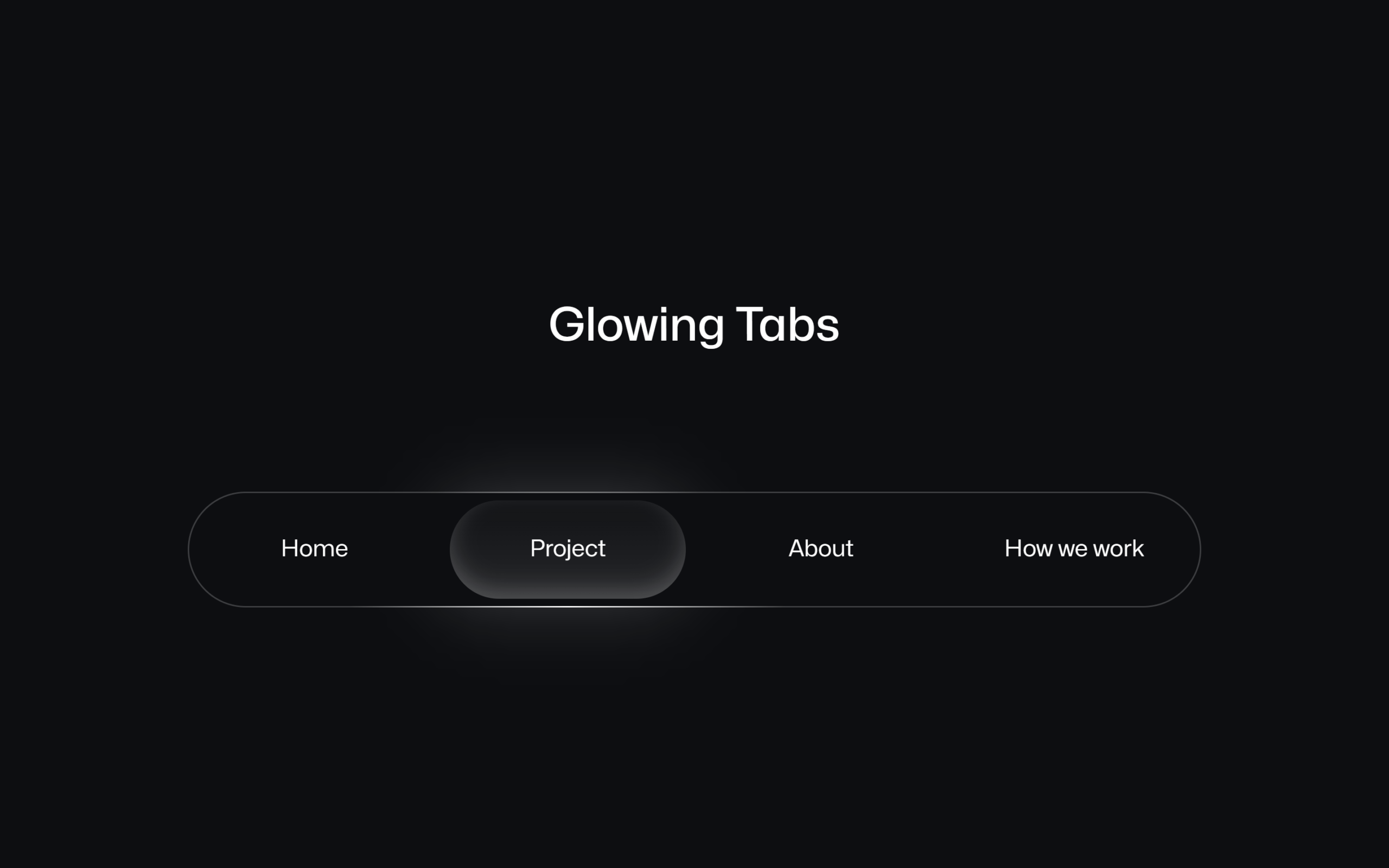
Let’s create a Glowing Tab Navigation using HTML, CSS, and JavaScript. This project will build a modern navigation bar with a smooth glowing indicator, hover effects, and interactive tab switching – perfect for making your UI look clean and premium.
We’ll use:
- HTML to structure the navigation menu with different tabs.
- CSS to design the glowing effect, smooth transitions, and animated highlight.
- JavaScript to handle active tab switching, glow movement, and mouse-based interactions.
This project is a great way to understand how dynamic navigation works while adding eye-catching animations to your website. Let’s build a sleek glowing tab navigation! ✨
HTML :
This HTML creates a simple webpage with a glowing tab-style navigation bar: it sets up the basic structure using <!DOCTYPE html>, defines metadata and links external CSS files for styling, then inside the body it shows a heading “Glowing Tabs” and a navigation menu with four links (Home, Project, About, How we work), each having its own ID for styling or interaction, and finally connects a JavaScript file (script.js) to add dynamic effects like glowing animations or active tab behavior.
<!DOCTYPE html>
<html lang="en">

<head>
  <meta charset="UTF-8">
  <title>Glowing Tabs Naviagtion | @coding.stella </title>
  <link rel="stylesheet" href="https://public.codepenassets.com/css/normalize-5.0.0.min.css">
  <link rel="stylesheet" href="./style.css">
</head>

<body>
  <main>
    <header>
      <h2>Glowing Tabs</h2>
    </header>

    <nav class="nav">
      <ul>
        <li><a href="#home" id="home">Home</a></li>
        <li><a href="#project" id="project">Project</a></li>
        <li><a href="#about" id="about">About</a></li>
        <li><a href="#how" id="how">How we work</a></li>
      </ul>
    </nav>
  </main>
  <script src="./script.js"></script>

</body>
</html>
CSS :
This CSS styles the glowing tabs navigation by using custom properties and animations to create a smooth glowing highlight that moves between tabs: it defines colors, spacing, and layout, then uses advanced features like @property, gradients, blur effects, and pseudo-elements (:before, :after) to create the glowing background and shadow, while hover and active states slightly scale and light up each tab, making the navigation feel interactive and animated.
@font-face{ font-display:swap;
  font-family: "Mona Sans";
  src: url("https://assets.codepen.io/64/Mona-Sans.woff2") format("woff2 supports variations"), url("https://assets.codepen.io/64/Mona-Sans.woff2") format("woff2-variations");
  font-weight: 100 1000;
 }

/*
-- Why the @layer ?
   I misuse the @layer for a good reason.
   Since I do a lot of demo featuring #houdini
   I like to store my @property --foo {} within
   A @layer so that the viewer can simply fold the layer
   And access to the interesting part of the CSS panel.
*/

@layer properties {
  @property --after-bg-position {
    syntax: "<number>";
    inherits: true;
    initial-value: 0;
  }

  @property --after-radial-bg-position {
    syntax: "<number>";
    inherits: true;
    initial-value: 0;
  }

  @property --after-bg-width {
    syntax: "<number>";
    inherits: true;
    initial-value: 100;
  }

  @property --after-bg-opacity {
    syntax: "<number>";
    inherits: true;
    initial-value: 20;
  }

  @property --after-shadow-offset {
    syntax: "<number>";
    inherits: true;
    initial-value: 15;
  }

  @property --after-scale {
    syntax: "<number>";
    inherits: true;
    initial-value: 0.85;
  }

  @property --li-before-opacity {
    syntax: "<number>";
    inherits: true;
    initial-value: 0;
  }
}

:root {
  /* -- Colors: */
  --body-bg-color: hsl(221deg 16% 6%);
  /* -- Background */
  --bg-position: 0;
  /* -- misc */
  --debug: 0;
  --trs-easing: cubic-bezier(.41, -0.09, .55, 1.09);
  --trs-timing: 300ms;
  --trs-delay: 80ms;
}

*,
*:before,
*:after {
  box-sizing: border-box;
  /* debug */
  outline: calc(var(--debug) * 1px) dashed rgba(255, 0, 0, 0.5);
}

html,
body {
  width: 100%;
  height: 100%;
  padding: 0;
  margin: 0;
}

body {
  background: var(--body-bg-color);
  display: grid;
  place-items: center;
  font-family: "Mona Sans", sans-serif;
}

main {
  width: 100%;
  max-width: 700px;
  color: white;
}

main header {
  text-align: center;
  margin-bottom: 6em;
}

main header h2 {
  font-size: 2em;
  font-weight: 500;
}

.nav {
  transition: --after-bg-position var(--trs-timing) var(--trs-easing) 0.2s, --after-radial-bg-position var(--trs-timing) var(--trs-easing) 0.2s, --after-bg-width var(--trs-timing) var(--trs-easing) 0.2s, --after-bg-opacity var(--trs-timing) var(--trs-easing) 0.2s, --li-before-opacity var(--trs-timing) var(--trs-easing) 0.2s;
  background: var(--body-bg-color);
  border-radius: 100px;
  position: relative;
}

.nav:before {
  content: "";
  display: block;
  position: absolute;
  width: calc(calc(var(--after-bg-width) * 1px) - 8px);
  height: 100%;
  background: rgb(255 255 255/calc(var(--after-shadow-offset)*1%));
  border-radius: 100px;
  filter: blur(20px);
  left: 0;
  top: 0;
  transform: translateX(calc(var(--after-bg-position) * 1px)) scale(1.1);
}

.nav ul {
  position: relative;
  padding: 0;
  margin: 0;
  list-style: none;
  display: flex;
  justify-content: space-between;
  height: 80px;
  border-radius: 100px;
  background-position: center center;
  background-image: radial-gradient(ellipse 150px 100px at calc(var(--after-radial-bg-position)*1px) bottom, white 0%, rgba(255, 255, 255, 0.2) 100%);
  /*
   &:has(li.active:hover):after {
    --after-bg-opacity: 50;
    --after-shadow-offset: 10;
  }
  */
  /*
    Some :has() goodness to control the
    nav:after border-radius hihihi
  */
}

.nav ul:active {
  --after-scale: 0.75;
}

.nav ul:before {
  content: "";
  display: block;
  position: absolute;
  width: calc(100% - 2px);
  height: calc(100% - 2px);
  background: var(--body-bg-color);
  top: 1px;
  left: 1px;
  border-radius: 100px;
}

.nav ul:after {
  content: "";
  display: block;
  position: absolute;
  z-index: 1;
  width: calc(calc(var(--after-bg-width) * 1px) - 12px);
  height: calc(100% - 12px);
  background: linear-gradient(to bottom, rgb(255 255 255/calc(calc(var(--after-bg-opacity, 0)/10)*1%)), rgba(255, 255, 255, 0.1));
  box-shadow: inset 0 -6px calc(var(--after-shadow-offset, 0)*1px) rgb(255 255 255/calc(var(--after-bg-opacity)*1%));
  left: 6px;
  top: 6px;
  transform: translate(calc(var(--after-bg-position) * 1px), 0);
  border-radius: 100px 12px 12px 100px;
  transition: --after-bg-opacity var(--trs-timing) var(--trs-easing) var(--trs-delay), --after-shadow-offset var(--trs-timing) var(--trs-easing) var(--trs-delay), border-radius var(--trs-timing) var(--trs-easing) var(--trs-delay);
  pointer-events: none;
}

.nav ul li {
  padding: 1em;
  height: 100%;
  width: 100%;
  position: relative;
  transform-style: preserve-3d;
  perspective: 800px;
}

.nav ul li:not(.active):hover {
  --li-before-opacity: 0.3;
}

.nav ul li:before {
  content: "";
  display: block;
  position: absolute;
  z-index: 1;
  background: rgba(255, 0, 0, 0.1);
  width: 100%;
  height: 100%;
  top: 0;
  left: 0;
  border-radius: 8px;
  pointer-events: none;
  user-select: none;
  background: linear-gradient(to bottom, rgba(255, 255, 255, 0.05), rgba(255, 255, 255, 0.35));
  opacity: var(--li-before-opacity);
  transform: scale(var(--after-scale)) rotateY(calc(var(--tilt-bg-y) * 3 * -1deg)) rotateX(calc(var(--tilt-bg-x) * 3 * 1deg)) translateZ(15px);
  transition: --li-before-opacity var(--trs-timing) var(--trs-easing), --after-scale calc(var(--trs-timing)/2) var(--trs-easing) calc(var(--trs-delay)/2);
}

.nav ul li:first-of-type:before {
  border-radius: 100px 12px 12px 100px;
}

.nav ul li:last-of-type:before {
  border-radius: 12px 100px 100px 12px;
}

.nav ul li a {
  display: block;
  color: inherit;
  width: 100%;
  height: 100%;
  display: flex;
  align-items: center;
  justify-content: center;
  text-decoration: none;
  position: relative;
  z-index: 10;
}

.nav ul:has(li.active:first-of-type a):after {
  border-radius: 100px 12px 12px 100px;
}

.nav ul:has(li.active:last-of-type a):after {
  border-radius: 12px 100px 100px 12px;
}

.nav ul:has(li.active:nth-child(n+2):nth-child(-n+3) a):after {
  border-radius: 100px;
}
JavaScript:
This JavaScript makes the glowing tabs interactive: when you click a tab, it removes the active class from others, adds it to the clicked one, and updates CSS variables to smoothly move and resize the glowing highlight under that tab; it also tracks mouse movement to calculate a slight tilt effect for a 3D feel, and on page load or resize it automatically sets the first tab as active and positions the glow correctly.
function inverseMousePosition(element, event) {
  const rect = element.getBoundingClientRect();
  const x = event.clientX - rect.left;
  const y = event.clientY - rect.top;

  const res = {
    x1: -(x - rect.width / 2) / 20, // top left
    y1: -(y - rect.height / 2) / 20,
    x2: -(x - rect.width / 2) / 20, // top right
    y2: (y - rect.height / 2) / 20,
    x3: (x - rect.width / 2) / 20, // bottom left
    y3: -(y - rect.height / 2) / 20,
    x4: (x - rect.width / 2) / 20, // bottom right
    y4: (y - rect.height / 2) / 20
  };

  const resKey =
    "x" + (x < rect.width / 2 ? 1 : 2) + (y < rect.height / 2 ? 1 : 3);
  const tilt = res;
  return tilt !== undefined ? tilt : 0; // default to 0 if undefined
}

function handleClick(event) {
  const nav = document.querySelector('.nav');
  const target = event.target.parentNode;
  const width = target.offsetWidth;
  const { left } = target.getBoundingClientRect();
  const offsetLeft = left - nav.getBoundingClientRect().left;

  [...nav.querySelectorAll('li')].map(link => link.classList.remove('active'))
  event.target.parentNode.classList.add('active');

  nav.style.setProperty('--after-bg-position', offsetLeft);
  nav.style.setProperty('--after-radial-bg-position', (left + width / 2) - nav.getBoundingClientRect().left);
  nav.style.setProperty('--after-bg-width', width);
}

const nav = document.querySelector('.nav');


const links = nav.querySelectorAll('li a');
for (let i = 0; i < links.length; i++) {
  links[i].addEventListener('click', handleClick);
  links[i].addEventListener("mousemove", (event) => {
    const tilt = inverseMousePosition(event.target, event);

    nav.style.setProperty("--tilt-bg-y", tilt.x1 * 2); // tone down the movement a bit
    nav.style.setProperty("--tilt-bg-x", tilt.y1 * 2); // tone down the movement a bit
  });
}

['DOMContentLoaded', 'resize'].map(event => window.addEventListener(event, () => {

  const { width, left } = links[0].parentNode.getBoundingClientRect();
  for (let i = 0; i < links.length; i++) {
    links[i].parentNode.classList.remove('active')
  }

  links[0].parentNode.classList.add('active');

  const offsetLeft = left - nav.getBoundingClientRect().left;

  nav.style.setProperty('--after-bg-position', offsetLeft);
  nav.style.setProperty('--after-radial-bg-position', 0);
  nav.style.setProperty('--after-bg-width', width);
}));
In conclusion, this Glowing Tab Navigation project shows how simple HTML, CSS, and JavaScript can be combined to create a smooth, interactive, and visually appealing navigation menu. With glowing effects, animations, and dynamic tab switching, you can upgrade basic UI into something modern and engaging while also improving your understanding of front-end interactions.
If your project has problems, don’t worry. Just click to download the source code and face your coding challenges with excitement. Have fun coding!
