


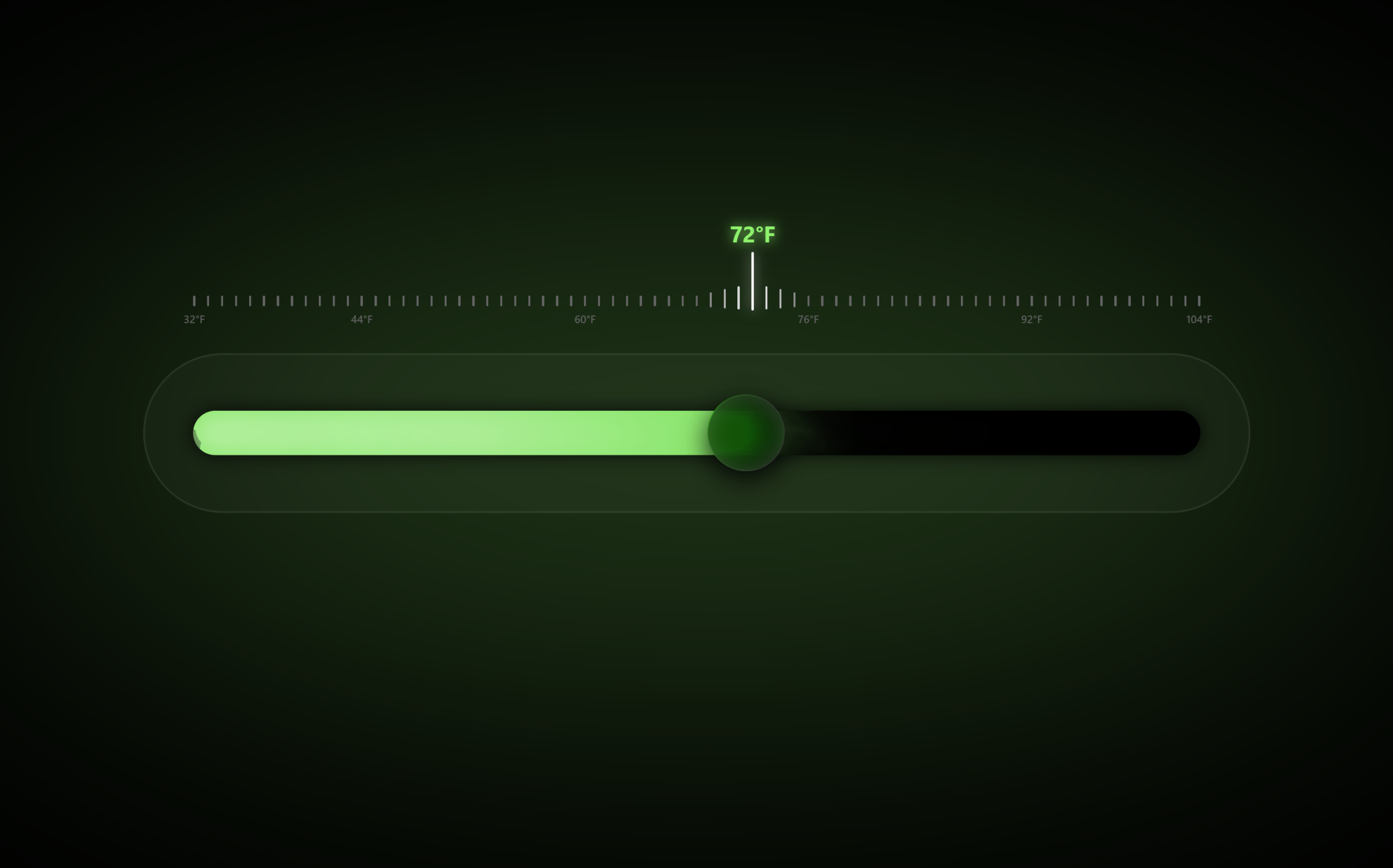
Let’s create Glass Thermometer Part 2 using HTML, CSS, and JavaScript with GSAP to make the interaction even more dynamic, immersive, and visually advanced. In this version, we’ll enhance the realism with animated plasma effects, smoother temperature transitions, responsive glow lighting, and interactive scale animations that react in real time as the user drags the knob.
We’ll use:
- HTML : To build the upgraded thermometer structure including the glass container, SVG turbulence filters, animated mercury track, responsive scale system, draggable knob, and dynamic temperature labels.
- CSS : To create a futuristic glassmorphism UI using layered blur effects, glowing gradients, animated plasma mercury, soft shadows, responsive layouts, tick animations, and realistic glass textures for a premium visual feel.
- JavaScript (GSAP + Draggable) : To control smooth knob dragging, dynamically update mercury fill levels, interpolate glow colors based on temperature ranges, animate active scale ticks, sync temperature labels in real time, and create fluid motion effects for a highly polished user experience.
This project is perfect for improving your frontend animation skills, mastering GSAP interactions, and learning how to combine SVG filters, advanced CSS effects, and JavaScript logic to build cinematic and responsive UI components that feel modern, interactive, and production ready.
HTML :
The HTML creates the structure of the glass thermometer UI. It adds the main thermostat container, glowing background, track, mercury fill, draggable knob, and temperature scale. It also includes an SVG filter for the liquid distortion effect and imports the GSAP library for smooth dragging animations.
<!DOCTYPE html>
<html lang="en">

<head>
  <meta charset="UTF-8">
  <title>Glass Thermometer | @coding.stella</title>
  <link rel="stylesheet" href="./style.css">
</head>

<body>

  <svg style="position:absolute; width:0; height:0;">
    <defs>
      <filter id="turbulent-displace" colorInterpolationFilters="sRGB" x="-20%" y="-20%" width="140%" height="140%">
        <feTurbulence type="turbulence" baseFrequency="0.02" numOctaves="10" result="noise1" seed="1" />
        <feOffset in="noise1" dx="0" dy="0" result="offsetNoise1">
          <animate attributeName="dy" values="700; 0" dur="6s" repeatCount="indefinite" calcMode="linear" />
        </feOffset>
        <feTurbulence type="turbulence" baseFrequency="0.02" numOctaves="10" result="noise2" seed="1" />
        <feOffset in="noise2" dx="0" dy="0" result="offsetNoise2">
          <animate attributeName="dy" values="0; -700" dur="6s" repeatCount="indefinite" calcMode="linear" />
        </feOffset>
        <feTurbulence type="turbulence" baseFrequency="0.02" numOctaves="10" result="noise3" seed="2" />
        <feOffset in="noise3" dx="0" dy="0" result="offsetNoise3">
          <animate attributeName="dx" values="490; 0" dur="6s" repeatCount="indefinite" calcMode="linear" />
        </feOffset>
        <feTurbulence type="turbulence" baseFrequency="0.02" numOctaves="10" result="noise4" seed="2" />
        <feOffset in="noise4" dx="0" dy="0" result="offsetNoise4">
          <animate attributeName="dx" values="0; -490" dur="6s" repeatCount="indefinite" calcMode="linear" />
        </feOffset>
        <feComposite in="offsetNoise1" in2="offsetNoise2" result="part1" />
        <feComposite in="offsetNoise3" in2="offsetNoise4" result="part2" />
        <feBlend in="part1" in2="part2" mode="color-dodge" result="combinedNoise" />
        <feDisplacementMap in="SourceGraphic" in2="combinedNoise" scale="30" xChannelSelector="R"
          yChannelSelector="B" />
      </filter>
    </defs>
  </svg>

  <div id="app">
    <div class="thermostat glass-panel">
      <div class="blur-circle" id="blurCircle"></div>
      <div class="thermostat-inner">
        <div class="glass-noise"></div>

        <div class="scale-container" id="scaleContainer"></div>

        <div class="track" id="track">
          <div class="mercury" id="mercury"></div>
        </div>
        <div class="knob-zone">
          <div class="knob" id="knob"></div>
        </div>
      </div>
    </div>
  </div>
  <script src='https://cdnjs.cloudflare.com/ajax/libs/gsap/3.12.2/gsap.min.js'></script>
  <script src='https://cdnjs.cloudflare.com/ajax/libs/gsap/3.12.2/Draggable.min.js'></script>
  <script src="./script.js"></script>

</body>

</html>
CSS :
The CSS designs the whole thermometer with a glassmorphism style using blur, shadows, gradients, and glowing effects. It styles the thermometer body, animated mercury liquid, draggable knob, scale ticks, and responsive layout. Animations and filters are used to make the thermometer look smooth, modern, and realistic.
:root {
  --glass-bg: rgba(10, 10, 10, 0.7);
  --glass-border: rgba(255, 255, 255, 0.08);
  --glow-color: #00a2fa;
  --tick-base-height: 10px;
  --tick-inactive-color: #646464;
  --tick-active-color: #ffffff;
}

/* Global reset */
* {
  box-sizing: border-box;
}

html,
body {
  margin: 0;
  padding: 0;
  height: 100vh;
  background: #000;
  color: #fff;
  overflow: hidden;
  font-family: "Inter", system-ui, sans-serif;
}

#app {
  height: 100vh;
  display: flex;
  align-items: center;
  justify-content: center;
}

/* Glass body */
.glass-panel {
  background: var(--glass-bg);
  backdrop-filter: blur(20px) saturate(180%);
  -webkit-backdrop-filter: blur(20px) saturate(180%);
  border: 1px solid var(--glass-border);
  box-shadow: 0 8px 32px rgba(0, 0, 0, 0.6);
}

/* Main body */
.thermostat {
  position: relative;
  width: 1040px;
  height: 150px;
  border-radius: 999px;
  overflow: visible;
}

.thermostat-inner {
  position: relative;
  width: 100%;
  height: 100%;
  border-radius: inherit;
  overflow: visible;
}

.thermostat-inner::before {
  content: "";
  position: absolute;
  inset: 0;
  border-radius: inherit;
  border: 1px solid rgba(255, 255, 255, 0.1);
  mix-blend-mode: soft-light;
  pointer-events: none;
}

/* Texture */
.glass-noise {
  position: absolute;
  inset: 0;
  border-radius: inherit;
  opacity: 0.08;
  mix-blend-mode: overlay;
  pointer-events: none;
  background-image: url("data:image/svg+xml,%3Csvg viewBox='0 0 200 200'%3E%3Cfilter id='n'%3E%3CfeTurbulence type='fractalNoise' baseFrequency='0.8' numOctaves='3' stitchTiles='stitch'/%3E%3C/filter%3E%3Crect width='100%25' height='100%25' filter='url(%23n)'/%3E%3C/svg%3E");
}

/* Big blurred background circle */
.blur-circle {
  position: absolute;
  inset: -160px;
  border-radius: 50%;
  filter: blur(187px);
  opacity: 0.25;
  background: var(--glow-color);
  z-index: 0;
}

/* Track – horizontal */
.track {
  position: absolute;
  top: 50%;
  left: 46px;
  right: 46px;
  transform: translateY(-50%);
  height: 42px;
  border-radius: 999px;
  background: radial-gradient(circle at 0% 50%,
      rgba(255, 255, 255, 0.35) 0,
      transparent 55%),
    radial-gradient(circle at 100% 50%,
      rgba(0, 0, 0, 1) 0,
      rgba(0, 0, 0, 0.9) 70%),
    linear-gradient(90deg, rgba(255, 255, 255, 0.04), rgba(0, 0, 0, 0.8));
  background-blend-mode: screen, normal, soft-light;
  box-shadow: inset 0 0 18px rgba(0, 0, 0, 1), 0 0 18px rgba(0, 0, 0, 0.8);
  overflow: hidden;
}

/* Electric plasma fill */
.mercury {
  position: absolute;
  top: -45%;
  left: 0;
  height: 190%;
  width: 0%;
  background: var(--glow-color);
  filter: url(#turbulent-displace);
  mix-blend-mode: screen;
  box-shadow: 0 0 45px var(--glow-color), 0 0 90px var(--glow-color);
  transition: width 0.12s linear, box-shadow 0.3s ease, background 0.25s ease;
  opacity: 0.95;
}

.mercury::before,
.mercury::after {
  content: "";
  position: absolute;
  inset: 0;
  border-radius: inherit;
  filter: blur(6px);
  background: radial-gradient(circle at 50% 50%,
      rgba(255, 255, 255, 0.3),
      transparent 90%);
  mix-blend-mode: color-dodge;
  opacity: 0.25;
  animation: pulseElectric 3s infinite ease-in-out alternate;
}

.mercury::after {
  filter: blur(16px);
  opacity: 0.18;
  animation-delay: 1.5s;
}

@keyframes pulseElectric {
  0% {
    opacity: 0.15;
    transform: scaleX(1);
  }

  100% {
    opacity: 0.35;
    transform: scaleX(1.05);
  }
}

/* Knob */
.knob-zone {
  position: absolute;
  top: 0;
  bottom: 0;
  left: 46px;
  right: 46px;
  pointer-events: none;
}

.knob {
  position: absolute;
  top: 50%;
  transform: translate(-50%, -50%);
  width: 72px;
  height: 72px;
  border-radius: 999px;
  background: rgba(10, 10, 10, 0.7);
  backdrop-filter: blur(12px) saturate(260%) brightness(1.25);
  -webkit-backdrop-filter: blur(12px) saturate(260%) brightness(1.25);
  border: 1px solid rgba(255, 255, 255, 0.14);
  box-shadow: inset 0 1px 18px rgba(255, 255, 255, 0.15),
    0 8px 26px rgba(0, 0, 0, 0.9);
  cursor: grab;
  pointer-events: auto;
  transition: box-shadow 0.2s ease, transform 0.15s ease;
}

.knob:active {
  transform: translate(-50%, -50%) scale(1.05);
}

/* Scale ticks (per degree) – sits above thermostat, labels will be attached to marks */
.scale-container {
  position: absolute;
  left: 46px;
  right: 46px;
  top: -85px;
  height: 40px;
  pointer-events: none;
  display: flex;
  justify-content: space-between;
  align-items: flex-end;
}

.scale-mark {
  position: relative;
  text-align: center;
  font-size: 12px;
  color: rgba(255, 255, 255, 0.35);
  font-weight: 500;
  transition: all 0.12s ease;
}

.scale-mark .tick {
  width: 2px;
  height: var(--tick-base-height);
  background: var(--tick-inactive-color);
  border-radius: 2px;
  margin: 0 auto;
  transform: translateY(0);
}

/* Main active value above active tick */
.scale-mark .value {
  position: absolute;
  bottom: 100%;
  left: 50%;
  transform: translateX(-50%);
  font-size: 1.3rem;
  font-weight: 700;
  white-space: nowrap;
  opacity: 0;
}

.scale-mark.active .value {
  opacity: 1;
  color: var(--glow-color);
  text-shadow: 0 0 12px var(--glow-color);
}

/* Small fixed labels below specific marks, same centering as .value but below */
.scale-mark .label-below {
  position: absolute;
  top: 100%;
  /* below the tick group */
  left: 50%;
  transform: translate(-50%, 5px);
  /* 5px lower */
  font-size: 10px;
  font-weight: 500;
  white-space: nowrap;
  opacity: 0.9;
}

/* Responsive */
@media (max-width: 480px) {
  .thermostat {
    transform: scale(0.8);
  }
}
JavaScript:
The JavaScript controls the thermometer functionality. It creates temperature marks, handles knob dragging, updates the mercury fill width, changes glow colors based on temperature, and highlights nearby scale ticks dynamically. GSAP Draggable is used to make the knob move smoothly while updating the UI in real time.
const CONFIG = {
  minTemp: 32,
  maxTemp: 104,
  defaultTemp: 68,
  gradientColors: [
    "#00eaff",
    "#0099ff",
    "#00ff73",
    "#ffdd00",
    "#ff8800",
    "#ff0044"
  ],
  gradientStops: [0, 0.25, 0.5, 0.7, 0.85, 1],
  labelTemps: [32, 44, 60, 76, 92, 104] // labels to show below ticks
};

const els = {
  track: document.getElementById("track"),
  mercury: document.getElementById("mercury"),
  knob: document.getElementById("knob"),
  scaleContainer: document.getElementById("scaleContainer"),
  root: document.documentElement,
  blurCircle: document.getElementById("blurCircle")
};

let currentTemp = CONFIG.defaultTemp;
let trackWidth = 0;
let knobBounds = { minX: 0, maxX: 0 };
let scaleItems = [];
let colorMap;

const lerp = (a, b, t) => a + (b - a) * t;

function mixColorInactiveActive(factor) {
  const c0 = { r: 0x64, g: 0x64, b: 0x64 };
  const c1 = { r: 0xff, g: 0xff, b: 0xff };
  const r = Math.round(lerp(c0.r, c1.r, factor));
  const g = Math.round(lerp(c0.g, c1.g, factor));
  const b = Math.round(lerp(c0.b, c1.b, factor));
  return `rgb(${r},${g},${b})`;
}

function createColorMap() {
  const stops = CONFIG.gradientStops;
  const colors = CONFIG.gradientColors.map((c) => gsap.utils.splitColor(c));
  return (t) => {
    t = Math.max(0, Math.min(1, t));
    for (let i = 0; i < stops.length - 1; i++) {
      const s0 = stops[i],
        s1 = stops[i + 1];
      if (t >= s0 && t <= s1) {
        const n = (t - s0) / (s1 - s0);
        const c0 = colors[i],
          c1 = colors[i + 1];
        return `rgb(${Math.round(lerp(c0[0], c1[0], n))},${Math.round(
          lerp(c0[1], c1[1], n)
        )},${Math.round(lerp(c0[2], c1[2], n))})`;
      }
    }
  };
}

function buildScale() {
  els.scaleContainer.innerHTML = "";
  scaleItems = [];

  for (let t = CONFIG.minTemp; t <= CONFIG.maxTemp; t++) {
    const mark = document.createElement("div");
    mark.className = "scale-mark";

    const tick = document.createElement("div");
    tick.className = "tick";
    mark.appendChild(tick);

    const value = document.createElement("div");
    value.className = "value";
    value.textContent = "";
    mark.appendChild(value);

    // if this temp is one of the 6 label temps, add a small label below
    if (CONFIG.labelTemps.includes(t)) {
      const labelBelow = document.createElement("div");
      labelBelow.className = "label-below";
      labelBelow.textContent = t + "°F";
      mark.appendChild(labelBelow);
    }

    mark.dataset.temp = t;
    els.scaleContainer.appendChild(mark);
    scaleItems.push(mark);
  }
}

/* keep label-below color matched with its mark tick color */
function syncBelowLabelColors() {
  scaleItems.forEach((mark) => {
    const label = mark.querySelector(".label-below");
    if (!label) return;
    const tick = mark.querySelector(".tick");
    const color = getComputedStyle(tick).backgroundColor;
    label.style.color = color;
  });
}

function applyColorTheme(color) {
  els.root.style.setProperty("--glow-color", color);
  els.mercury.style.boxShadow = `0 0 45px ${color}, 0 0 90px ${color}`;
  els.blurCircle.style.background = color;
}

function setActiveAndNeighbors(temp) {
  const baseHeight =
    parseFloat(
      getComputedStyle(document.documentElement).getPropertyValue(
        "--tick-base-height"
      )
    ) || 10;

  // reset
  scaleItems.forEach((m) => {
    const tick = m.querySelector(".tick");
    const value = m.querySelector(".value");
    m.classList.remove("active");
    tick.style.height = baseHeight + "px";
    tick.style.transform = "translateY(0)";
    tick.style.background = "var(--tick-inactive-color)";
    tick.style.boxShadow = "none";
    value.textContent = "";
    value.style.opacity = "0";
  });

  // closest mark
  let closest = null;
  let closestDiff = Infinity;
  scaleItems.forEach((m) => {
    const t = parseInt(m.dataset.temp, 10);
    const diff = Math.abs(t - temp);
    if (diff < closestDiff) {
      closestDiff = diff;
      closest = m;
    }
  });
  if (!closest) return;

  const activeIndex = scaleItems.indexOf(closest);
  const activeTick = closest.querySelector(".tick");
  const activeValue = closest.querySelector(".value");

  // Active: 5.5× height, lowered by 4px, solid white
  activeTick.style.height = baseHeight * 5.5 + "px";
  activeTick.style.transform = "translateY(4px)";
  activeTick.style.background = "var(--tick-active-color)";
  activeTick.style.boxShadow = "0 0 12px var(--tick-active-color)";
  closest.classList.add("active");
  activeValue.textContent = `${parseInt(closest.dataset.temp, 10)}°F`;
  activeValue.style.opacity = "1";

  // neighbors: 1: 2.2×,3px; 2: 1.6×,2px; 3: 1.3×,1px
  const neighborConfig = [
    { distance: 1, factor: 2.2, offset: 3 },
    { distance: 2, factor: 1.8, offset: 2 },
    { distance: 3, factor: 1.4, offset: 1 }
  ];

  neighborConfig.forEach((cfg, idx) => {
    const d = cfg.distance;
    const hFactor = cfg.factor;
    const offset = cfg.offset;
    const colorFactor =
      (neighborConfig.length - idx) / (neighborConfig.length + 1);

    [activeIndex - d, activeIndex + d].forEach((i) => {
      if (i < 0 || i >= scaleItems.length) return;
      const m = scaleItems[i];
      const tk = m.querySelector(".tick");
      tk.style.height = baseHeight * hFactor + "px";
      tk.style.transform = `translateY(${offset}px)`;
      tk.style.background = mixColorInactiveActive(colorFactor);
    });
  });

  syncBelowLabelColors();
}

function updateSystemFromX(xPos) {
  xPos = Math.max(knobBounds.minX, Math.min(knobBounds.maxX, xPos));
  const pct = xPos / trackWidth;
  const temp = CONFIG.minTemp + pct * (CONFIG.maxTemp - CONFIG.minTemp);
  currentTemp = Math.round(temp);

  const norm =
    (currentTemp - CONFIG.minTemp) / (CONFIG.maxTemp - CONFIG.minTemp);
  const color = colorMap(norm);

  els.mercury.style.width = pct * 100 + "%";
  applyColorTheme(color);
  setActiveAndNeighbors(currentTemp);
}

function initLayout() {
  const rect = els.track.getBoundingClientRect();
  trackWidth = rect.width;
  knobBounds = { minX: 0, maxX: trackWidth };

  buildScale();

  const norm =
    (CONFIG.defaultTemp - CONFIG.minTemp) / (CONFIG.maxTemp - CONFIG.minTemp);
  const startX = trackWidth * norm;

  gsap.set(els.knob, { x: startX });
  updateSystemFromX(startX);
}

function initDrag() {
  Draggable.create(els.knob, {
    type: "x",
    bounds: { minX: knobBounds.minX, maxX: knobBounds.maxX },
    inertia: true,
    onDrag() {
      updateSystemFromX(this.x);
    },
    onThrowUpdate() {
      updateSystemFromX(this.x);
    }
  });
}

window.addEventListener("load", () => {
  colorMap = createColorMap();
  initLayout();
  initDrag();
});
window.addEventListener("resize", () => {
  initLayout();
});
By building this project, you learn how to turn static UI into an immersive experience using motion, visual feedback, and user interaction. It demonstrates how thoughtful animations and dynamic effects can elevate simple components into engaging, production ready interfaces suitable for modern web applications.
If your project has problems, don’t worry. Just click to download the source code and face your coding challenges with excitement. Have fun coding!
