


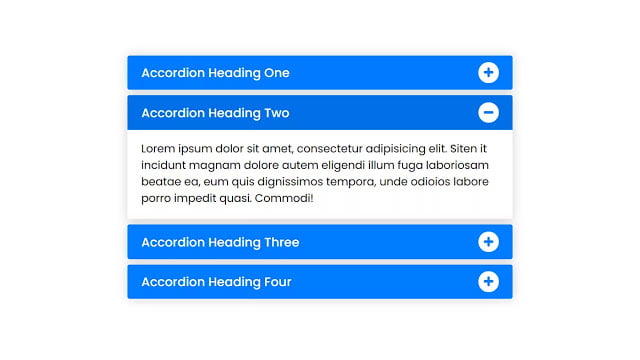
Let’s create a Responsive Accordion Menu using only HTML and CSS. This project is great for beginners and will help you understand how to build a user-friendly menu for websites that adjusts to different screen sizes.
We’ll use HTML to structure the menu and CSS to make it responsive, meaning it will look good on both desktop and mobile devices. No need for any complicated coding – just simple steps to create a functional and stylish menu.
Let’s start building this Responsive Accordion Menu. It’s perfect for anyone learning web development or looking to enhance their website with a sleek menu. Let’s get started and make navigation a breeze!
HTML :
This is an HTML document creating a responsive accordion menu. It includes headings with collapsible content. Each heading has an icon indicating its state (collapsed or expanded). Subheadings are nested within some main headings. The menu is styled using CSS defined in an external stylesheet, and it uses Font Awesome icons for the expand/collapse functionality.
<!DOCTYPE html>
<html lang="en">
<head>
    <meta charset="UTF-8">
    <meta name="viewport" content="width=device-width, initial-scale=1.0">
    <title> Responsive Accordion Menu | Coding Stella </title>
    <link rel="stylesheet" href="style.css">
    <link rel="stylesheet" href="https://cdnjs.cloudflare.com/ajax/libs/font-awesome/5.15.3/css/all.min.css"/>
</head>
<body>
  <div class="wrapper">
    <!-- Accordion Heading One -->
    <div class="parent-tab">
      <input type="radio" name="tab" id="tab-1" checked>
      <label for="tab-1">
        <span>Accordion Heading One</span>
        <div class="icon"><i class="fas fa-plus"></i></div>
      </label>
      <div class="content">
        <p>Lorem ipsum dolor sit amet, consectetur adipisicing thelit. Quam, repellendus facere, id porro magnam blanditiiss quoteos dolores ratione quidem ipsam esse quos pariatur, repellat obcaecati!</p>
      </div>
    </div>

    <!-- Accordion Heading Two -->
    <div class="parent-tab">
      <input type="radio" name="tab" id="tab-2">
      <label for="tab-2">
        <span>Accordion Heading Two</span>
        <div class="icon"><i class="fas fa-plus"></i></div>
      </label>
      <div class="content">
        <p>Lorem ipsum dolor sit amet, consectetur adipisicing thelit. Quam, repellendus facere, id porro magnam blanditiiss quoteos dolores ratione quidem ipsam esse quos pariatur, repellat obcaecati!</p>
      </div>
    </div>

    <!-- Accordion Heading Three -->
    <div class="parent-tab tab-3">
      <input type="radio" name="tab" id="tab-3">
      <label for="tab-3" class="tab-3">
        <span>Accordion Heading Three</span>
        <div class="icon"><i class="fas fa-plus"></i></div>
      </label>
      <div class="content">
        <!-- Sub Heading One -->
        <div class="child-tab">
          <input type="checkbox" name="sub-tab" id="tab-4">
          <label for="tab-4">
            <span>Sub Heading One</span>
            <div class="icon"><i class="fas fa-plus"></i></div>
          </label>
          <div class="sub-content">
            <p>Lorem ipsum dolor sit amet, consectetur adipisicing thelit dolor. Utfacilis labore, exercitationem fuga minima a illo modi vitaerse dignissimos? Vero?</p>
          </div>
        </div>
        <!-- Sub Heading Two -->
        <div class="child-tab">
          <input type="checkbox" name="sub-tab" id="tab-5">
          <label for="tab-5">
            <span>Sub Heading Two</span>
            <div class="icon"><i class="fas fa-plus"></i></div>
          </label>
          <div class="sub-content">
            <p>Lorem ipsum dolor sit amet, consectetur adipisicing thelit dolor. Utfacilis labore, exercitationem fuga minima a illo modi vitaerse dignissimos? Vero?</p>
          </div>
        </div>
      </div>
    </div>

    <!-- Accordion Heading Four -->
    <div class="parent-tab">
      <input type="radio" name="tab" id="tab-6">
      <label for="tab-6">
        <span>Accordion Heading Four</span>
        <div class="icon"><i class="fas fa-plus"></i></div>
      </label>
      <div class="content">
        <p>Lorem ipsum dolor sit amet, consectetur adipisicing thelit. Quam, repellendus facere, id porro magnam blanditiiss quoteos dolores ratione quidem ipsam esse quos pariatur, repellat obcaecati!</p>
      </div>
    </div>
  </div>

</body>
</html>
CSS :
This CSS code styles a webpage with Google’s “Poppins” font and resets default styles. It centers the body content, styles tab labels and icons, and sets up tab content to expand on user interaction. The design includes hover effects, transitions, and specific formatting for tab content. Radio buttons and checkboxes are hidden. Overall, it creates a clean, visually appealing layout for tabs and their content.
@import url("https://fonts.googleapis.com/css2?family=Poppins:wght@200;300;400;500;600;700&display=swap");
* {
  margin: 0;
  padding: 0;
  box-sizing: border-box;
  font-family: "Poppins", sans-serif;
}
body {
  display: flex;
  align-items: center;
  justify-content: center;
  min-height: 100vh;
}
::selection {
  background: rgb(0, 123, 255, 0.3);
}
.wrapper {
  max-width: 600px;
  padding: 0 20px;
}
.wrapper .parent-tab,
.wrapper .child-tab {
  margin-bottom: 8px;
  border-radius: 3px;
  box-shadow: 0px 0px 15px rgba(0, 0, 0, 0.18);
}
.wrapper .parent-tab label,
.wrapper .child-tab label {
  background: #007bff;
  padding: 10px 20px;
  display: flex;
  align-items: center;
  justify-content: space-between;
  cursor: pointer;
  border-radius: 3px;
  position: relative;
  z-index: 99;
  transition: all 0.3s ease;
}
.wrapper .parent-tab label:hover {
  background: #006fe6;
}
.parent-tab input:checked ~ label,
.child-tab input:checked ~ label {
  border-radius: 3px 3px 0 0;
  background: #006fe6;
}
.wrapper label span {
  color: #fff;
  font-size: 18px;
  font-weight: 500;
  text-shadow: 0 -1px 1px #0056b3;
}
.wrapper .child-tab label span {
  font-size: 17px;
}
.parent-tab label .icon {
  position: relative;
  height: 30px;
  width: 30px;
  font-size: 15px;
  color: #007bff;
  display: block;
  background: #fff;
  border-radius: 50%;
  text-shadow: 0 -1px 1px #0056b3;
}
.wrapper .child-tab label .icon {
  height: 27px;
  width: 27px;
}
.parent-tab label .icon i {
  position: absolute;
  top: 50%;
  left: 50%;
  transform: translate(-50%, -50%);
}
.parent-tab input:checked ~ label .icon i:before,
.child-tab input:checked ~ label .icon i:before {
  content: "\f068";
}
.wrapper .parent-tab .content,
.wrapper .child-tab .sub-content {
  max-height: 0px;
  overflow: hidden;
  background: #fff;
  border-radius: 0 0 3px 3px;
  transition: all 0.4s ease;
}
.parent-tab input:checked ~ .content,
.child-tab input:checked ~ .sub-content {
  max-height: 100vh;
}
.tab-3 input:checked ~ .content {
  padding: 15px 20px;
}
.parent-tab .content p,
.child-tab .sub-content p {
  padding: 15px 20px;
  font-size: 16px;
}
.child-tab .sub-content p {
  font-size: 15px;
}
input[type="radio"],
input[type="checkbox"] {
  display: none;
}
To sum it up, we’ve successfully created a Responsive Accordion Menu using only HTML and CSS. This project is beginner-friendly, offering a practical way to build a user-friendly menu that looks great on both desktop and mobile devices.
Facing any problems in your project ? Stay confident! Click Download, obtain the source code, and tackle your coding issues with determination. May your coding experience be smooth and rewarding!
